Polar Cloud
Groups
The Polar Cloud’s Group Structure feature lets you organize users and sites into logical groups. This makes it easier to manage access, visibility, and control across complex organizations. Groups also support a hierarchy, allowing you to create parent-child relationships between groups.t function of a group
Understanding the Group Hierarchy
- Parent Groups:
A parent group sits higher in the hierarchy. It can see all users and sites that belong to its own group and any child groups beneath it. Child Groups:
A child group is nested under a parent group. It only sees users and sites within its own group and any of its own child groups.Child groups cannot see users or sites in parent groups or sibling groups.
Multi-Level Hierarchies:
A child group can also act as a parent to additional child groups below it. This allows for a multi-tiered structure.
Tip: Think of the structure as a tree: the topmost group can see everything below it, but the lower branches cannot see sideways or upward.
Adding new Groups
To add groups, navigate to the Groups page from the home page on the Polar Cloud.
Then click on the + icon next to the group as per the image below.
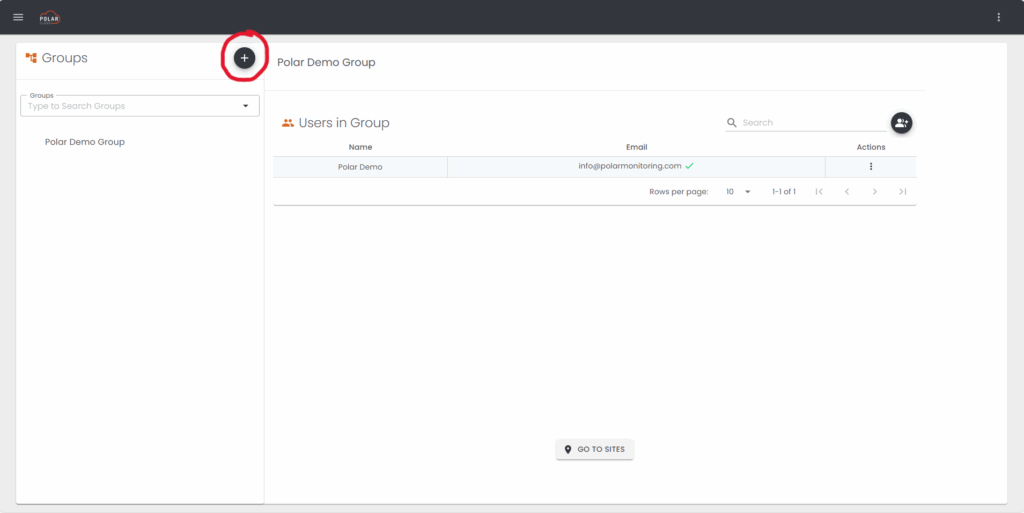
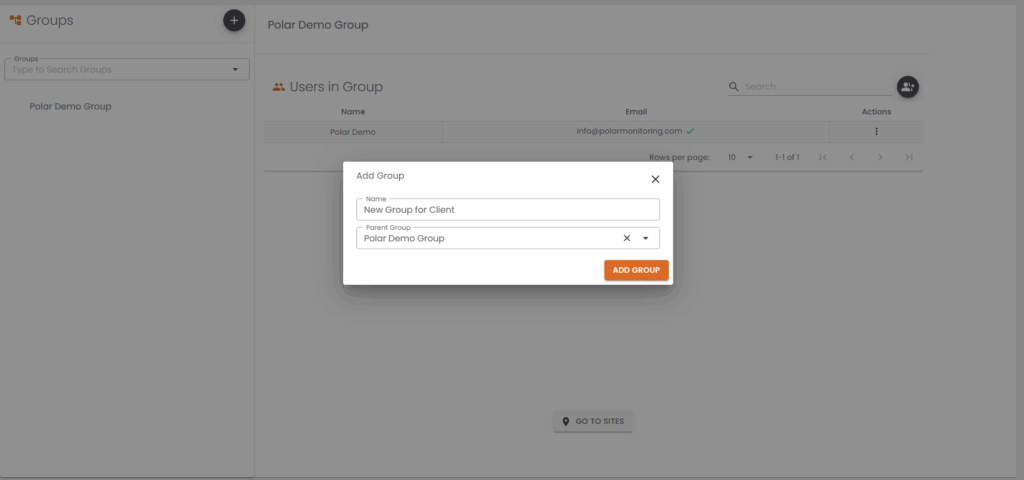
Once clicked it will open a window where you can name your new group. Below this is the section where you can select the Parent to your new group.
Note: If the parent group does not appear in the list it then not accessable to your account or the group has not been successfully created yet. Groups are created top down in terms of the heirarchy structure.
Once the info and parent group is input, save your new group by clicking ADD GROUP.
Editing an existing Group
If one needs to edit a name or assign a different parent to a group this will be done by edditing a group.
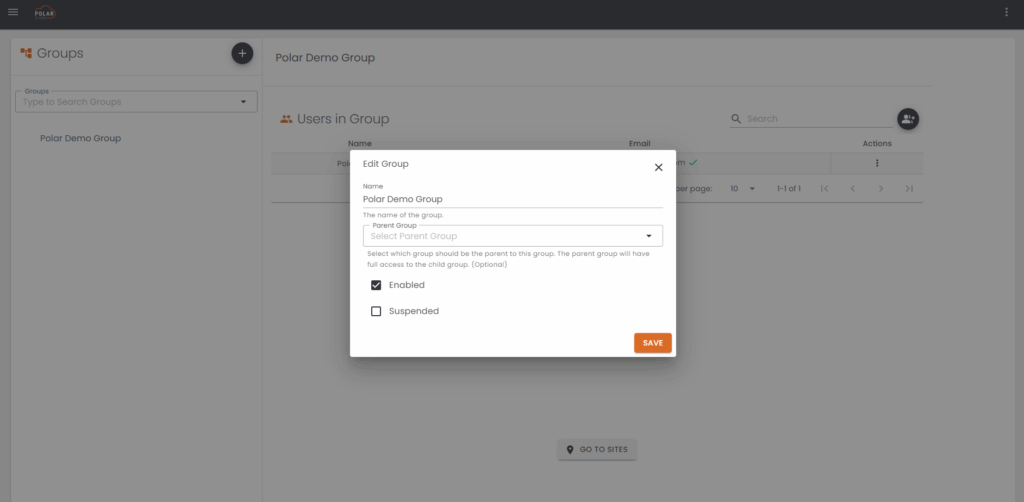
From the group menu, hover your cursor over the group you wish to edit and a pencil icon will appear.
Clicking this icon will navigate you edit group menu
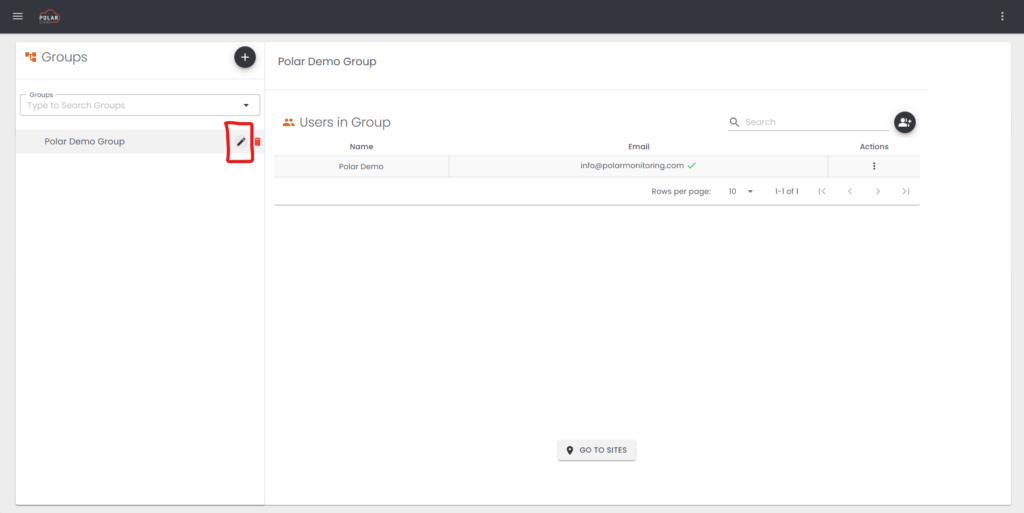
This edit menu will allow one to do the following:
- Edit the Group name
- Edit the assigned Parent Group
- Enable or disable the group
- This is used to disable all devices, gateways and users on a group temporarily
- Suspend a Group
- This is used to suspend all users, sites, gateways and devices on a group.
Deleting a Group
If a group is no longer required it can be permanently deleted from the system. This is done by hovering your curser over the group you wish to delete, a red bin icon will appear next to the appropriate group name.
Clicking this will allow you to the delete the group after some confirmation.
Note: In order to delete a group one will first need to remove all sites, devices and users ascociated with the Group.
Examples
Scenario #1
A system integrator purchases Polar Monitoring product from a whole sale partner.
This system integrator builds the Polar Monitoring systems into panels that then gets sold to an electrical contractor that supports various farmers in their local area.
Requirements: The various farm owners need access to their system and only want to view and access devices relevent to them. The various companies involved in the chain of the service delivery above also need access to support and service the farm owner.
The electrical contractor needs access to all the farm owners they support in order to offer the best service.
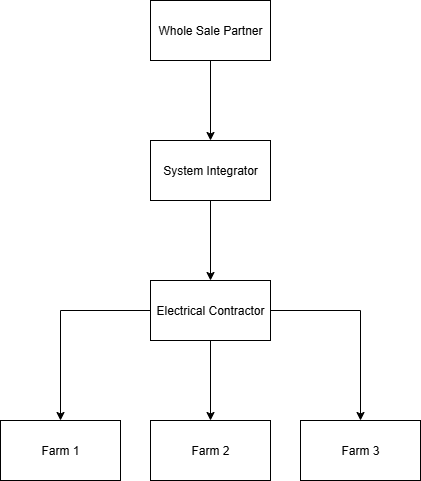
Group Layout
In the layout below, the whole sale partner would create their account, and make thier group.
This whole sale partner would then create a new group called system integrator which they would choose their group as the parent and add the appropriate users to manage this group. Once created in this manner the system integrator will be able to manage their own group and subsiquent child groups.
The system integrator will then create another group called Electrical Contractor where they will make themselves the Parent and give acces to the electrical contractor and appropriate users.
Finally the electrical contractor will create their 3 subsiquent groups Farm 1, Farm 2 and Farm 3 each time making thier group the parent and adding the appropriate people from each farm to their respective group.
Setting this up as described above will allow users from each farm to login and only see sites and other users relevant to their specific farm, they will not have, or even be aware, of the other farms in the parent and child groups, users or sites in the groups above or next to theirs.