
Variable Frequecy Drives
FRECON VFD
This guide will show you how to connect the Polar Monitoring Gateway to the FRECON FR500F Variable Speed Drive. It will also take you through the setup and parameters required on the FRECON FR500F to ensure communications to the Polar Gateway.
Steps to follow:
- Connect power to the Gateway.
- Connect RS-485.
- Final checks.
- Power on the system.
- Configure the FRECON FR500F Serial Parameters.
FRECON FR500F Connection Setup
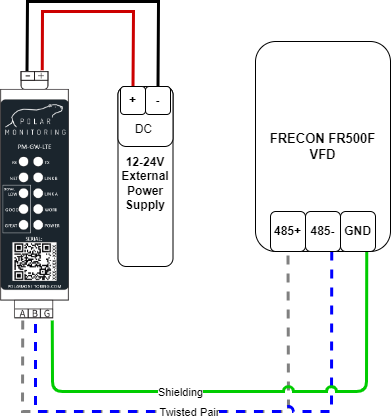
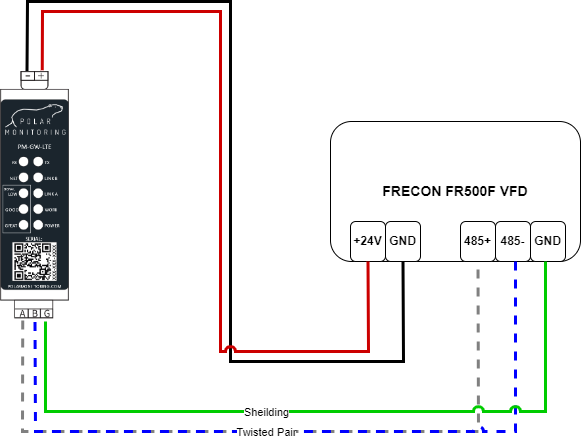
1. Connect power to the Gateway.
A. Power the gateway from the external power supply.
Wire the Polar Gateway to a 12-24 V DC power supply. Connect the positive wire to the positive terminal and the negative wire to the negative terminal.
B. Power the gateway from the VSD.
Wire the Polar Gateway directly to the VSD. Connect the positive wire to the +24V terminal and the negative wire to the terminal.
2. Connect RS-485.
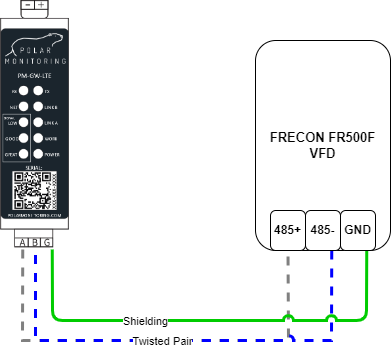
Wire the RS-485 cable to allow communication with the Polar Gateway. Connect A => 485+ , B => 485A- and G => GND. What is RS-485?
3. Final checks
- Make sure the wiring is secure – no short circuits.
- Ensure that all connections are secure on the device and the gateway.
- Re-check the RS-485 twisted pair cable is correctly wired.
- Check that the A and B are correctly wired to the device.
4. Power on the system
Now you are ready to go, you can now switch on the Polar Gateway and the FRECON FR500F.
5. Configure FRECON FR500F Serial Parameters
Note: It is critical to change the default settings to reflect the table below.
Serial Communication Setup
Name | Description | Parameter | Default | Required Setting |
Serial Baud Rate | Baud Rate | F15.00 | 1: 9600 bps | 1: 9600 bps |
Serial Bytes Config | Data Format | F15.01 | 0: (1-8-n-2) | 3: (1-8-n-1) |
Serial Address | Slave Address | F15.02 | 1 | 1 |
Communication Timeout | Timeout Period | F15.03 | 0.0 s | 0.0 s |
Response Time Delay | Delay Time | F15.04 | 1 ms | 1 ms |
Master-slave Communication Mode | Communication Mode | F15.05 | 0: Slave | 0: Slave |
You may now sign in to the Polar Portal to monitor the device remotely, the button on the right will take you through a setup process.